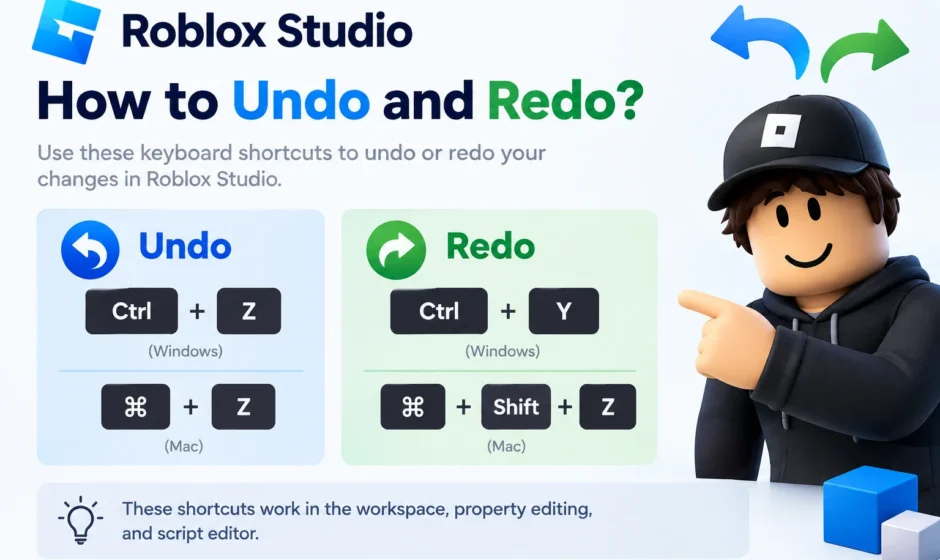

In Roblox Studio, undo is Ctrl + Z for Microsoft Windows or ⌘ + Z for Mac, and redo is Ctrl + Y or Ctrl + Shift + Z for Windows or Shift + ⌘ + Z for Mac. These work the same way whether you’re moving parts in the workspace, editing properties, or writing code in the script editor. Though scripts and workspace changes are tracked in slightly different ways, which is where most confusion (and most bug reports) actually come from.
If you’re new to Roblox Studio, or if undo suddenly stopped working the way you expect, this guide covers the actual shortcuts. How the Undo History panel works, how undo behaves differently in Play mode, and the most common reasons undo/redo breaks based on confirmed reports from Roblox’s own Developer Forum.
Default Undo and Redo Shortcuts
| Action | Windows | Mac |
| Undo | Ctrl + Z | ⌘ + Z |
| Redo | Ctrl + Y or Ctrl + Shift + Z | Shift + ⌘ + Z |
These shortcuts work across most of Studio’s interface the 3D viewport, the Explorer and Properties panels, and the script editor. Repeatedly pressing undo steps backward through your edit history one action at a time. Pressing redo moves forward again through the same stack, as long as you haven’t made a new edit in between (more on that below).
How to Customize the Shortcuts?
If you’d rather use different keys, or your undo/redo shortcuts conflict with another tool or plugin, you can change them:
- Open the Help menu in Roblox Studio.
- Select Keyboard Shortcuts (sometimes listed as “Customize Shortcuts” depending on your Studio version).
- Find the Undo and Redo entries and assign new key combinations.
This is also the place to check first if your shortcuts seem to have stopped working. A plugin or a manual change can sometimes overwrite the default binding.
Undoing Grouped Actions
When you perform an action that affects multiple objects at once. For example, moving or deleting a group of selected parts. Roblox Studio treats that as a single undo step. Pressing undo once reverts the entire group action, rather than requiring you to undo each object individually. This is useful to know before you panic and hit undo repeatedly, potentially reverting several unrelated actions you actually wanted to keep.
Using the Undo History Panel
For more control than pressing Ctrl+Z repeatedly, Roblox Studio includes an Undo History panel that shows a running list of your recent actions. Which let you jump directly to a specific earlier point rather than stepping backward one action at a time.
To open it:
- Go to the View menu.
- Enable Undo History.
- The panel appears in the Studio interface, listing recent actions with the tool or operation used for each one.
This is especially useful in longer building or scripting sessions where you’ve made dozens of small changes and only want to jump back to one specific point, rather than undoing everything one step at a time.
Undo Behavior in Play Mode (Testing)
Undo works differently once you start testing your game inside Studio (Play mode), and this trips up a lot of newer developers:
- Changes made to the Explorer while testing can sometimes be reverted after you stop the test.
- Changes made to scripts while the game is actually running are generally not undoable. Script behavior during runtime isn’t tracked the same way as edit-mode changes.
If you’re actively debugging and tweaking a script while testing. It’s worth saving your work first (or noting your changes) rather than relying on undo to recover a runtime edit.
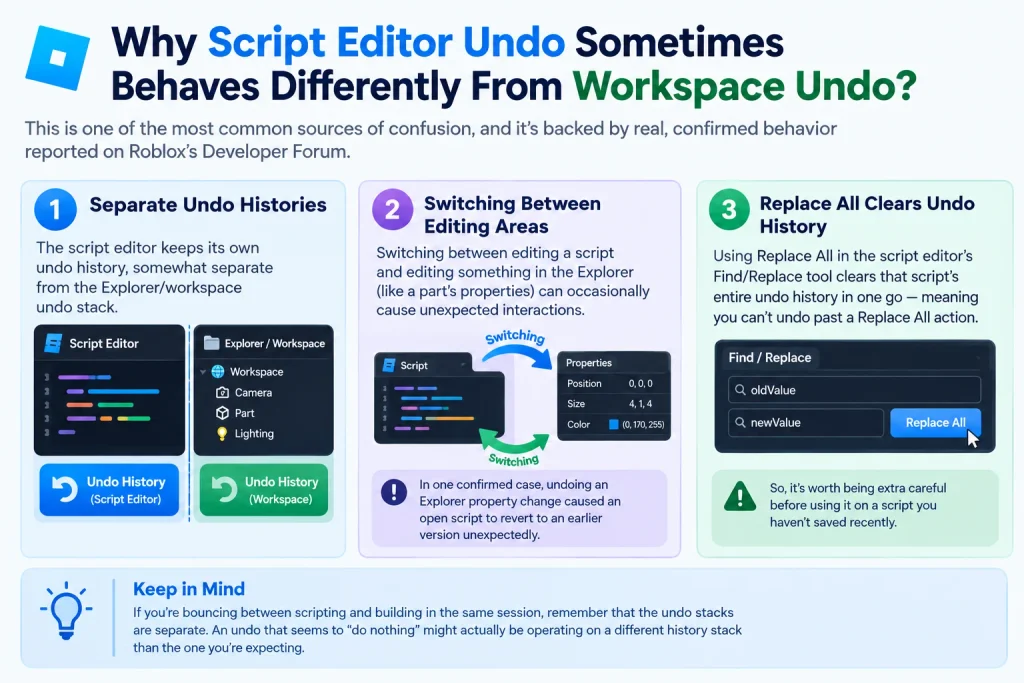
Why Script Editor Undo Sometimes Behaves Differently From Workspace Undo?
This is one of the most common sources of confusion, and it’s backed by real, confirmed behavior reported on Roblox’s Developer Forum:
- The script editor keeps its own undo history, somewhat separate from the Explorer/workspace undo stack.
- Switching between editing a script and editing something in the Explorer (like a part’s properties) can occasionally cause unexpected interactions — in one confirmed case, undoing an Explorer property change caused an open script to revert to an earlier version unexpectedly.
- Using Replace All in the script editor’s Find/Replace tool clears that script’s entire undo history in one go — meaning you can’t undo past a Replace All action, so it’s worth being extra careful before using it on a script you haven’t saved recently.
If you’re bouncing between scripting and building in the same session, keep this separation in mind. An undo that seems to “do nothing” might actually be operating on a different history stack than the one you’re expecting.
Common Undo/Redo Problems and Fixes
| Problem | Likely Cause | What to Try |
| Undo only works once, redo doesn’t work at all | A reported Studio bug affecting workspace object history specifically | Restart Studio; if it persists, check the Developer Forum for an open bug report before assuming it’s your setup |
| Undo/redo stopped working after an update | Occasional regressions following Studio updates, per multiple forum reports | Reinstall Studio, reset Studio settings, or restart your computer; if none work, it may be a platform-wide bug rather than a local issue |
| Script reverts unexpectedly after an unrelated undo | Cross-interaction between script editor and Explorer undo stacks | Save your script before making Explorer changes, especially in the same session |
| Undo history disappeared after Replace All | Confirmed behavior — Replace All clears script undo history | Save a backup copy of the script before running Replace All on unsaved work |
| Redo option is grayed out | You made a new edit after undoing, which clears the redo stack | This is expected behavior, not a bug — redo is only available until your next new action |
| Can’t undo far enough back in a huge project | Studio’s undo stack has practical memory limits in very large places | Save checkpoints (File → Save As with versioned names) rather than relying on unlimited undo depth |
A Few Practical Habits Worth Building
- Save frequently, and save versioned copies (like MyGame_v1, MyGame_v2) during major changes — undo history is local to your current session and isn’t synced or exportable, so it disappears if Studio closes or crashes.
- Use the Undo History panel rather than mashing Ctrl+Z blindly when you’ve made many small changes and need to jump back to a specific point.
- Be cautious with Replace All in the script editor on anything you haven’t saved recently, since it wipes that script’s undo history.
- Don’t rely on undo during Play mode testing for script changes — it’s not designed to reverse runtime behavior the way edit-mode undo works.
Conclusion
Undo and redo in Roblox Studio work the same basic way as most creative software. But the split behavior between script editing, Explorer editing, and Play mode is where most real confusion happens. And it’s backed by genuine platform quirks rather than user error in most cases. Understanding that scripts and workspace changes aren’t always tracked the same way. And building the habit of saving versioned backups, will save you far more frustration than perfecting your undo shortcut alone.
If you’re troubleshooting something Roblox-related more broadly, you might also find it useful to understand what does Unavailable Mean on Roblox Friends List. A separate but similarly common source of Roblox confusion in 2026, tied to the platform’s newer age-verification and privacy systems rather than anything wrong with your account or settings.
FAQs
What is the shortcut to undo in Roblox Studio?
Ctrl + Z on Windows, or ⌘ + Z on Mac. It works across the workspace, Properties panel, and script editor.
What is the shortcut to redo in Roblox Studio?
Ctrl + Y or Ctrl + Shift + Z on Windows, or Shift + ⌘ + Z on Mac.
Why is redo grayed out in Roblox Studio?
This is expected behavior, not a bug. Making any new edit after using undo clears the redo stack, so redo becomes unavailable until you undo again first.
Can I undo script changes made while testing my game (Play mode)?
No. Script changes made while a game is actively running in Play mode generally can’t be undone. Explorer changes made during testing can sometimes be reverted after you stop the test, but script runtime behavior is not tracked the same way.
Why did my script revert after I undid something unrelated in the Explorer?
This is a confirmed, reported behavior where the script editor’s undo history and the Explorer’s undo history can interact unexpectedly. Saving your script before making unrelated Explorer changes helps avoid this.
Does Replace All in the script editor affect undo history?
Yes. Using Replace All through the Find/Replace tool clears that script’s entire undo history, so you can’t undo past that point. Save a backup copy before using it on unsaved work.